
YouTube Profile Picture Size: Exact Specs, Circular Crop Guide + Design Tips (2026)
Quick Answer
Your YouTube profile picture should be 800×800 pixels, square (1:1 ratio), saved as PNG or JPG, and under 4MB. YouTube automatically crops it into a circle for display, so keep your face or logo centered inside a roughly 560x560px safe zone. Anything smaller than 800×800 risks looking blurry once YouTube compresses it for tiny display sizes.
YouTube Profile Picture Size: Official Specs
Here are the exact specs YouTube uses, pulled from YouTube’s official channel image guidelines. Get these right once and you never have to think about them again.
Recommended dimensions and why 800×800 matters
YouTube recommends 800×800 pixels at a 1:1 square ratio. The technical minimum is 256×256, but uploading at the minimum is a mistake. YouTube re-encodes every image you upload, then shrinks it to fit different surfaces across the platform. Start with a small file and the compression layers stack until your picture looks soft and pixelated.
800×800 gives YouTube headroom. The platform can downscale a high-quality image cleanly, but it cannot invent detail that was never there. If you only have a 400×400 source file, get a larger version before you upload. Re-export from the original design file in Canva, Figma, Photoshop, or Illustrator. Do not upscale a small JPEG in an editor; that produces fake pixels and visible artifacts.
File formats: when to use PNG vs JPEG
YouTube accepts JPG, PNG, GIF, and BMP. In practice, you should pick between PNG and JPEG based on what your profile picture actually contains.
- PNG for logos, illustrations, channel marks, text, and anything with hard edges or flat color. PNG is lossless, so letters stay sharp and edges do not pick up the speckled artifacts JPEG creates around high-contrast areas.
- JPEG for photographs, headshots, and any image that is mostly continuous tone. JPEG produces smaller files for photo content, which means YouTube has less reason to recompress aggressively.
GIF and BMP work but offer no real advantage. Use them only if your source file is already in that format and re-saving would degrade it. Animated GIFs do not animate in the profile picture slot, so there is no creative reason to use them.
The 4MB file size limit
YouTube caps profile picture uploads at 4MB. An 800×800 PNG with reasonable color depth typically lands between 200KB and 1MB, so the limit is generous. If you are bumping against 4MB, you are likely exporting at 4000×4000 or higher. Export at 800×800 or 1600×1600 maximum and the file size resolves itself.
The Circular Crop: What Gets Cut Off and How to Design Around It
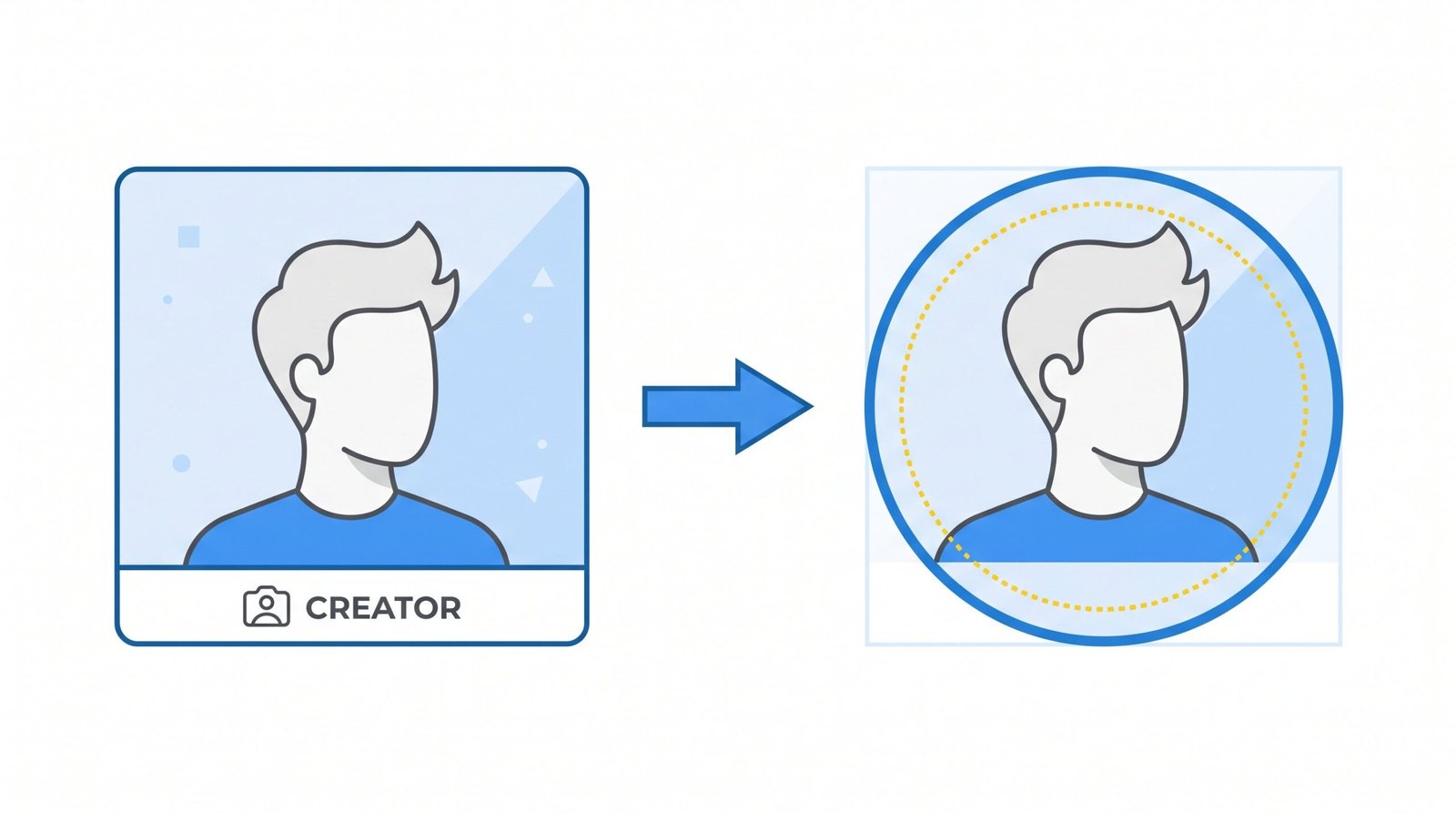
You upload a square. YouTube displays a circle. Anything in the corners of your 800×800 file gets clipped, and creators who do not plan for the crop end up with logos that look chopped or text that loses its first and last letters.
Understanding the safe zone (~560×560 inner circle)
The inscribed circle inside an 800×800 square has a diameter of 800px. But “safe” is tighter than the full circle, because YouTube renders profile pictures with anti-aliasing that softens the edge by a few pixels at small sizes. We suggest keeping all critical content, faces, logos, key text, inside a 560×560 centered area. That leaves about 120px of margin on every side, which is enough to absorb the crop plus any platform-side padding.
Practical test: draw a 560px circle in the center of your 800×800 canvas before you start designing. If your subject extends beyond that circle, scale it down or recenter. The corners of your square will never be visible, so do not place anything important there.
What the crop looks like across surfaces
The circle is consistent everywhere. YouTube does not show your square anywhere on the consumer-facing site. The only place you see the full square is in the upload preview before you confirm the crop, and inside your Google Account photo manager. Once it is live, every appearance of your profile picture is circular.
Where Your Profile Picture Appears (and What Size It Renders At)
Your single 800×800 upload appears at vastly different sizes depending on the surface. Designing for the largest size is a trap; design for the smallest. If your picture works at 32px, it works everywhere.
| Surface | Display size | Notes |
|---|---|---|
| Channel page header | ~96x96px | The largest consumer-facing display. Sits next to your channel name and banner. |
| Video watch page (uploader avatar) | ~40-48px | Appears below the video title, next to your channel name and subscriber count. |
| Search results | ~48x48px | Shown next to channel results and in some video result rows. |
| Comment threads | ~40-48px | Every comment you post, on your own channel and across YouTube. |
| Subscription feed entries | ~36-40px | The small avatar next to each video tile in subscriber feeds. |
| Notification bell area | ~32x32px | The smallest common surface. Your design must read clearly here. |
| Mobile app channel list | ~40-48px | Subscriber list, channel switcher, and Shorts creator chips. |
The 32px notification rendering is the constraint that should drive your design. At 32px, a face becomes a smudge of skin tone, a busy logo becomes noise, and any text smaller than two or three large characters is unreadable. Strong silhouettes, high contrast, and a single dominant element are what survive at that size.
The Google Account Connection Most Creators Miss
This trips up almost every new creator. Your YouTube profile picture is not a YouTube setting. It is your Google Account profile picture. When you change it on YouTube, you also change the photo that appears in Gmail, Google Meet, Google Drive comments, Google Docs collaboration, Google Calendar invites, and every other Google product you are signed into.
The reverse is also true: change your photo in Google Account settings and YouTube updates within minutes. There is no separate “YouTube-only” profile picture for personal channels.
The one exception is Brand Accounts. If your channel sits on a YouTube Brand Account rather than your personal Google Account, the profile picture is independent of your personal Gmail photo. Most creators on Brand Accounts know they are on one, because they had to deliberately switch. If you set your channel up with a single Google sign-in and never went through brand account migration, your profile pictures are linked.
Why this matters: a creator who changes their YouTube avatar to a new logo design and then notices their professional Gmail signature suddenly shows the logo instead of their face is not seeing a bug. That is the intended behavior. If you want separation, the cleanest fix is to move the channel onto a Brand Account, then assign your personal Google Account as the owner. From that point forward, you manage two separate photos.
Why Your YouTube Profile Picture Looks Blurry
Blurry profile pictures are the single most common complaint creators raise on YouTube help forums and creator subreddits. The diagnosis is almost always one of four causes, and each has a clean fix.
Too small on upload (most common)
You uploaded a file smaller than 800×800. YouTube accepts the upload because 256×256 meets the minimum, then upscales the image to render at larger surfaces like the 96px channel header. Upscaling is just stretching pixels, and stretched pixels look soft.
Fix: export your source artwork at 800×800 or larger. If your original logo file is a vector (SVG, AI, EPS), there is no excuse, vectors export to any size sharply. If your original is a small raster file, you need a new master file, not a bigger version of the small one.
JPEG compression artifacts
You uploaded a heavily compressed JPEG, often one that has been re-saved multiple times. JPEG loses data on every save. By the time YouTube applies its own compression layer on top, the image looks muddy, especially around edges and text.
Fix: export a fresh JPEG from your source file at maximum or near-maximum quality. For logos and text, switch to PNG entirely. PNG is lossless, so the only compression in the chain is YouTube’s own pass, which is far gentler.
Low-res screenshots
You took a screenshot of your logo from a website, a slide deck, or a phone screen. Screenshots capture pixels at screen resolution, which is rarely high enough for a print-quality 800×800 output. The result looks fine on the screen you grabbed it from and falls apart anywhere else.
Fix: get the original asset. Ask your designer for the source file, re-export from your design tool, or rebuild a clean 800×800 version. Never use a screenshot as the source for an avatar.
Aggressive YouTube recompression
YouTube compresses every uploaded image. There is nothing you can do to disable this, but you can compensate. Upload at higher resolution than you need (800×800 minimum, even though the largest display is 96px) and use PNG for graphics. YouTube has less to compress when the source is already clean.
How to Change Your YouTube Profile Picture (Step-by-Step)
The exact path depends on your device and which Google interface you start from. All routes lead to the same Google Account photo.
On desktop (via YouTube Studio or Google Account)
- Sign in to YouTube and go to YouTube Studio.
- In the left sidebar, click Customization, then Branding.
- Under Picture, click Upload and select your 800×800 file.
- Adjust the crop preview if YouTube offers one, then click Done.
- Click Publish in the top right corner.
Changes can take a few minutes to a few hours to propagate across YouTube. If your channel has heavy caching (large subscriber count, embedded widely), allow up to 24 hours for the new picture to appear everywhere.
On mobile (iOS and Android)
- Open the YouTube app and tap your profile picture in the top right.
- Tap your channel name to open your channel.
- Tap Edit channel.
- Tap the pencil or camera icon on your current profile picture.
- Choose Take photo or Select from your photos.
- Crop the image to the circle preview and confirm.
The mobile flow uploads to Google Account directly. You will see the change reflected in Gmail and other Google apps within minutes.
Design Tips for a Profile Picture That Works at Every Size
The technical specs get you a valid upload. Good design gets you an avatar viewers recognize at a glance in a crowded subscription feed.
Face vs logo
If you are a personal-brand creator (vlog, commentary, education, fitness, tutorials), use a face. Tight crop, eyes near the top third of the circle, neutral or branded background. Faces outperform logos for personal channels because viewers recognize people faster than marks at small sizes.
If you are a brand, show, or topic channel (gaming clan, news outlet, niche review channel), use a logo. Make it bold, high-contrast, and readable at 32px. Test by exporting your design at 32×32 and looking at it from arm’s length. If you cannot tell what it is, simplify.
Text in profile pictures (usually fails at 32px)
Channel names, taglines, and URLs in profile pictures almost always fail. At 32px in the notification bell area, a five-letter word renders at roughly 6px per character. That is below the threshold for legible type on screen. If you absolutely need text, limit it to a single bold initial or a two-character monogram, set in a heavy weight, with maximum contrast against the background.
Color contrast and visibility
YouTube’s interface is white on light mode and dark gray on dark mode. Your avatar appears against both. A pure white background on a logo disappears in light mode; a pure black background flattens into dark mode. Use a saturated brand color or a mid-tone background that holds shape in both themes.
Test your avatar against both themes before you commit. Open YouTube in two browser windows, toggle dark mode in one, and compare. If your picture only looks right in one theme, redesign.
Matching your channel banner palette
Your profile picture sits inside or next to your YouTube banner on the channel page header. They are seen together, every time. Use the same accent color in both, the same logo treatment, and the same typographic feel. A coherent banner-and-avatar pair signals professionalism to subscribers and viewers landing on your channel for the first time. While you are auditing your channel art, pair it with a strong channel description so the whole top-of-channel impression aligns.
YouTube Image Sizes at a Glance (Comparison Table)
Your channel uses three core image assets. Here is how they compare so you can spec them together rather than chasing one at a time.
| Asset | Recommended size | Aspect ratio | Max file size | Best format |
|---|---|---|---|---|
| Profile picture | 800x800px | 1:1 (square, crops to circle) | 4MB | PNG for logos, JPEG for photos |
| Channel banner (channel art) | 2048x1152px | 16:9 | 6MB | JPEG or PNG, with safe zone 1235×338 |
| Video thumbnail | 1280x720px | 16:9 | 2MB | JPEG or PNG, optimized for compression |
For the full breakdown on banners, including the multi-device safe zone, see our guide on channel art and banner dimensions. For thumbnail design and click-through rate optimization, our thumbnail dimensions guide covers what wins in 2026. And if you are auditing your whole channel setup, the broader YouTube SEO tips for 2026 reference covers ranking factors beyond visual assets.
Frequently Asked Questions
What is the best size for a YouTube profile picture?
800×800 pixels at a 1:1 square ratio. This is YouTube’s recommended size and gives the platform enough resolution to downscale cleanly across every display surface, from the 96px channel header to the 32px notification icon.
What is the minimum size for a YouTube profile picture?
256×256 pixels is YouTube’s technical minimum, but it is not a practical target. Upload at the minimum and your picture will look blurry on the channel page header. Use 800×800 unless you literally cannot get a larger source file.
Why does my YouTube profile picture look blurry?
Four common causes: the upload was smaller than 800×800, the file was a heavily compressed JPEG, the source was a low-resolution screenshot, or all of the above combined with YouTube’s own compression pass. Re-export from a high-quality source at 800×800 in PNG format if you have a logo or graphic, and the issue typically resolves.
Does changing my YouTube profile picture change my Gmail photo?
Yes, if your channel is on a personal Google Account. Your YouTube profile picture is your Google Account profile picture, so it appears across Gmail, Google Meet, Google Drive, and every other Google product. The exception is YouTube Brand Accounts, which maintain a profile picture independent of your personal Gmail photo.
What file format should I use for my YouTube profile picture?
PNG for logos, illustrations, and any image with text or hard edges. JPEG for photographs and headshots. PNG is lossless, so logos stay sharp. JPEG is more efficient for continuous-tone photos, so file sizes stay small without obvious quality loss.
How long does it take for a YouTube profile picture change to appear?
Usually a few minutes, but it can take up to 24 hours to propagate across all of YouTube and other Google services. Large channels with heavily cached pages may see slower updates. If nothing has changed after a day, sign out and back in, or clear your browser cache.
Can I have a different profile picture on YouTube than on Gmail?
Only if your YouTube channel is on a Brand Account rather than a personal Google Account. Brand Accounts have their own profile picture that is separate from your personal Google identity. You can migrate an existing channel to a Brand Account, or create a new one through YouTube’s account settings.