
YouTube Captions: How to Add, Edit, and Optimize Subtitles for SEO (2026 Guide)
Most articles about YouTube captions stop at “click this button to turn them on.” That’s not useful if you’re a creator trying to rank, grow, and serve a global audience. This guide covers what actually moves the needle: how captions affect search visibility, when auto-captions are good enough versus when you need to edit them, the often-ignored Shorts workflow, and which captioning tools are worth your money.
Why YouTube Captions Matter (Beyond Accessibility)
Accessibility is the reason most creators add captions. SEO is the reason they should care more than they do.
YouTube’s algorithm reads caption text the same way it reads your title, description, and tags. Every word spoken in your video becomes indexed, searchable content. If you say “best DSLR camera under $500” in minute four, that phrase is now associated with your video in YouTube’s database. This is free keyword coverage you’d otherwise lose. A 10-minute video with accurate captions contains roughly 1,200 to 1,800 words of indexed text, which is more keyword surface area than even the most detailed video description can offer. Pair this with a tight on-page strategy from our YouTube SEO tips for 2026 and captions become one of your highest-leverage growth assets.
Google Search also uses caption text. When Google decides whether your video deserves a rich result in search (the video card with a thumbnail and timestamps), it analyzes the caption track to understand video content and identify key moments. Google’s video search documentation confirms that structured captions help videos qualify for video rich results and key moments features in search.
The viewing data tells the rest of the story. According to Verizon Media and Publicis research, 80% of viewers watch videos with the sound off in public settings, on commutes, or at work. If your video relies on audio to deliver value, you’re losing four out of five potential viewers without captions. Add to this the auto-translate feature, which converts your captions into 14+ languages on demand, and you’ve extended your reach to non-English audiences with zero additional work.
The accessibility benefit is real and important. Around 466 million people worldwide have disabling hearing loss, and captions are the legal compliance bar in many jurisdictions for video content from businesses, educators, and broadcasters. But for creators focused on growth, the SEO and reach gains arrive faster and matter more. Watch time also climbs measurably when captions are present, because viewers who would otherwise scroll past a muted autoplay clip stay long enough to read the first line and decide if the content is worth their attention. Three extra seconds of held attention at the start is the difference between a video that gets recommended further and one that disappears into the algorithmic graveyard.
4 Methods to Add Captions to YouTube
YouTube offers four ways to get captions on your videos. Each suits a different stage of production and budget.
| Method | Best For | Accuracy | Time Required | Cost |
|---|---|---|---|---|
| Auto-generated captions | Quick uploads, low-stakes content, initial draft | 80-85% (clear speech) | 0 minutes (automatic) | Free |
| Upload SRT/VTT file | Pre-edited captions from external tools or services | 95-99% (depends on source) | 2-5 minutes upload | Free upload (file creation varies) |
| Manual transcript entry | Short videos, full control over wording | 99% (human typed) | 3-5x video length | Free (your time) |
| Auto-sync transcript | Scripted content with existing transcript | 98%+ | 10-15 minutes | Free |
Choose auto-generated captions when you upload frequently and need a baseline. Choose SRT uploads when you’ve paid for human transcription or generated captions in an external tool. Choose manual entry for short, high-priority videos where every word matters. Choose auto-sync when you already have a full script and want YouTube to handle the timing.
How to Add Captions in YouTube Studio (Auto Method)
Auto-captions are the default starting point for almost every creator. Here’s how to enable, access, and review them.
- Sign in to YouTube Studio at studio.youtube.com.
- In the left sidebar, click Subtitles.
- Find the video you want to caption and click its title.
- YouTube automatically generates captions for most uploads in English, Spanish, French, German, Italian, Japanese, Korean, Dutch, Portuguese, Russian, and Vietnamese. Processing usually takes a few minutes to a few hours after upload.
- Click the language row labeled Published (automatic) to open the caption editor.
- Review the auto-generated text, especially names, brand terms, and technical vocabulary, which are the most common error sources.
- Edit any incorrect segments by clicking on the timestamped line and typing corrections.
- Click Save changes when finished. Your edited captions replace the auto version and become the published track.
For new uploads, you can also add captions during the upload flow. Click Show more in the upload wizard and select the Subtitles section. For existing videos, the Subtitles tab in YouTube Studio gives you the same options retroactively.
How to Upload an SRT Caption File
An SRT (SubRip Subtitle) file is a plain text document that pairs blocks of caption text with timestamps. It’s the most widely supported caption format on the internet, used by YouTube, Facebook, Vimeo, LinkedIn, and most video platforms. Here’s what one looks like:
1
00:00:00,000 –> 00:00:03,500
Welcome back to the channel. Today we’re testing five
budget microphones under fifty dollars.
2
00:00:03,500 –> 00:00:07,200
I’ll rank them by sound quality and tell you which one
I’d actually buy with my own money.
Each block has a sequence number, a start and end timestamp in HH:MM:SS,mmm format, the caption text (often split across two lines for readability), and a blank line separating blocks. You can create an SRT file in any text editor, but most creators export them from transcription services or video editing software.
To upload an SRT file to your video:
- Open YouTube Studio and navigate to Subtitles in the left sidebar.
- Select the video you want to caption.
- Click Add language if your target language isn’t listed yet, then choose the language.
- Under the new language row, click Add in the Subtitles column.
- Choose Upload file, then select With timing (since SRT files contain timestamps).
- Click Continue, select your .srt file from your computer, and click Save.
For details from YouTube’s side, see YouTube’s caption upload process documentation.
SRT vs VTT: which should you use? SRT is the universal default and works everywhere. VTT (WebVTT) is similar but adds support for styling, positioning, and metadata. If you need captions to appear at the top of the frame in some segments, change color for a different speaker, or display chapter markers, VTT is the better choice. For 95% of YouTube creators, SRT does everything they need. Both formats upload through the same workflow inside YouTube Studio. While you’re optimizing on-page elements, our guide on how to write effective YouTube descriptions pairs naturally with caption work since both share the same indexed keyword pool.
How to Edit YouTube Captions
Auto-captions are a starting point, not a finishing line. The editing experience inside YouTube Studio is functional but takes practice to use efficiently.
To open the editor, go to YouTube Studio > Subtitles, click your video, then click the language row you want to edit. You’ll see a side-by-side view: video preview on top, time-coded caption segments below, and a text editor pane for changes. Click any segment to edit its text or adjust its start and end times by dragging the segment boundaries on the timeline.
Editing efficiency tips:
- Use keyboard shortcuts. Spacebar plays and pauses, Shift+Left/Right moves between segments, and Enter creates a new line within a segment. Learn these and you’ll move 3-4x faster.
- Keep segments at 2 lines max, 32 characters per line. Longer segments overflow the viewer’s screen and become unreadable, particularly on mobile.
- Hit the accuracy traps first. Auto-captions struggle with homophones (their/there/they’re), proper nouns (brand names, people’s names, place names), technical terms (any jargon your industry uses), and numbers (especially currency and dates). Skim the captions for these before reading top to bottom.
- Don’t over-edit ums and ahs. Light filler word removal is fine, but heavy cleanup that departs from spoken audio violates YouTube’s caption policies and can hurt your accessibility score.
- Add speaker labels when relevant. For interviews or multi-person videos, prefix lines with [Host], [Guest], or names to clarify who’s talking.
When is editing worth your time? If your video is under 5 minutes and likely to get more than 5,000 views, editing pays back the 20-minute investment. If it’s a 30-minute live stream that will get 500 views, your time is better spent elsewhere or paying a service. If the video covers a topic where accuracy matters (medical, legal, financial, educational), edit regardless of view count because incorrect captions in these niches can damage trust and create liability.
YouTube Auto-Captions: How Accurate Are They?
The honest answer most articles skip: it depends on your audio.
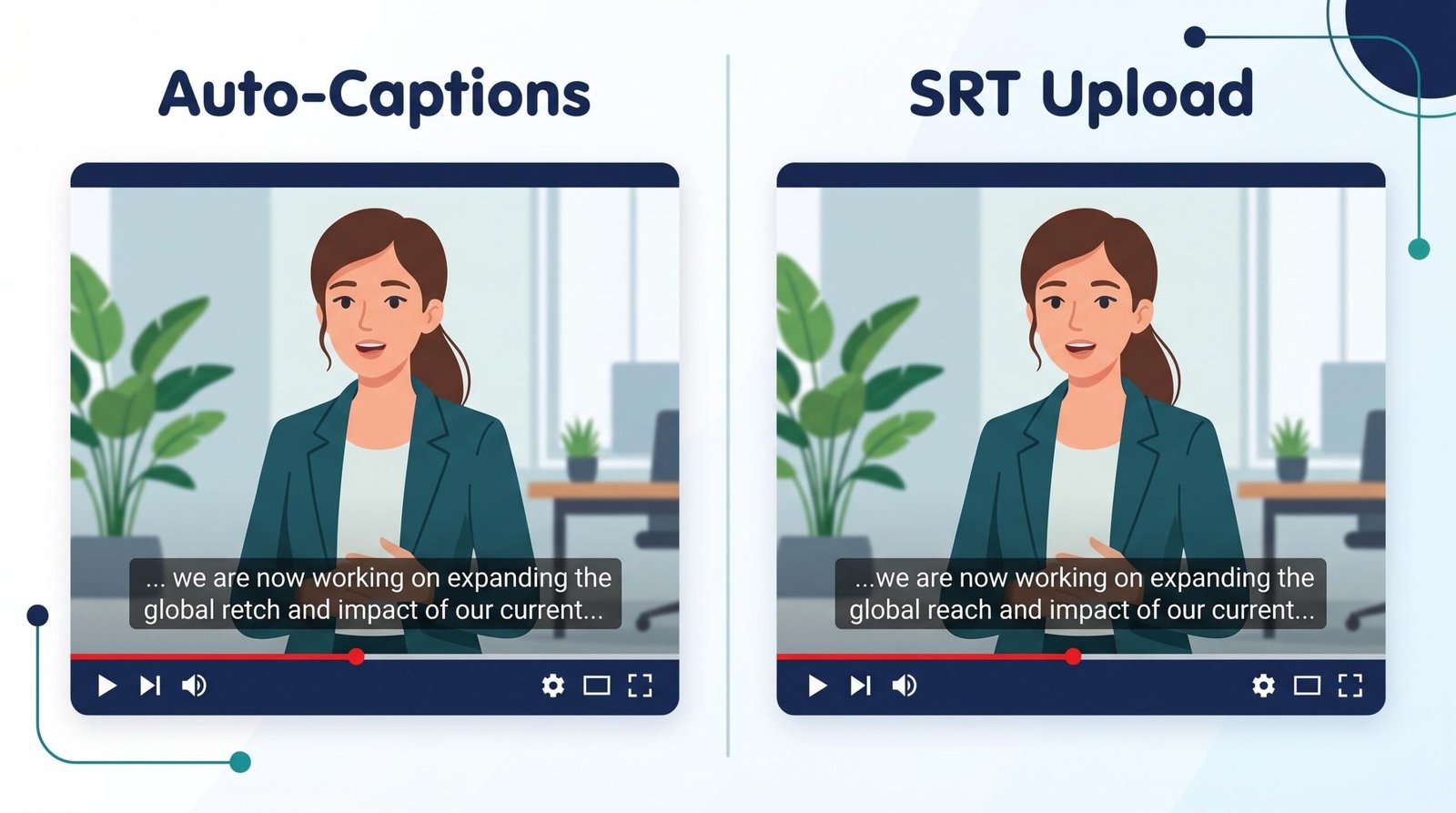
For clearly enunciated English speech recorded with a decent microphone in a quiet room, YouTube’s auto-captions hit around 80-85% accuracy. That’s roughly 1 in 6 words wrong, which sounds bad until you compare it to the 60-70% accuracy you’ll see when any of the following appear:
- Heavy regional or non-native accents
- Industry-specific jargon (medical, legal, tech, scientific)
- Background music, ambient noise, or echo
- Multiple speakers talking over each other
- Brand names, product names, or proper nouns
- Rapid speech or whispering
So what does 80-85% accuracy actually mean for your channel?
Auto-captions ARE good enough for discoverability and SEO. YouTube and Google index even imperfect caption text. If you mention “lavalier microphone” in your video and the auto-caption captures it correctly, that’s a search-ranking signal. The errors don’t significantly hurt indexing because algorithms understand context across the full caption track.
The accuracy threshold for full accessibility compliance, by contrast, is 99% per WCAG 2.1 AA guidelines. This is the bar required for public sector videos, large enterprise content, broadcast media, and any video subject to ADA or Section 508 requirements. Auto-captions don’t clear this bar without editing. If your content falls under accessibility regulations or you’re publishing for a brand that takes accessibility seriously, you need human review at minimum.
Decision framework:
- Leave auto-captions as-is if you’re a hobbyist creator, your videos get under 1,000 views, or you’re testing a content niche and don’t want to invest production time.
- Edit auto-captions yourself if you’re growing a channel with consistent 5,000+ view videos, your niche has specific terminology that auto-captions mangle, or your audience includes a meaningful percentage of viewers in public settings or with hearing loss.
- Pay for professional captions if your content is monetized, brand-sponsored, used for education or training, subject to compliance requirements, or aimed at international audiences where translation quality matters.
YouTube Shorts Captions (The Overlooked Workflow)
Shorts captions get almost no coverage anywhere, which is strange given Shorts now drive 70 billion daily views on YouTube. Here’s what you need to know.
Shorts get auto-captions, but the workflow is different. When you upload a Short, YouTube generates captions automatically just like with long-form videos, but they display in a distinct style at the bottom of the vertical frame and use larger text to remain readable on mobile. You can view and edit them inside YouTube Studio under the Subtitles section, same as any other video.
SRT file upload is limited for Shorts. YouTube’s caption upload flow technically supports Shorts the same way it supports long-form videos, but in practice, Shorts most often use the auto-caption system with light manual editing in Studio. Many creators skip SRT uploads for Shorts because the 60-second format makes the workflow time investment hard to justify.
Caption segments are shorter by necessity. Shorts move fast. A typical Short delivers 2-4 distinct ideas in 60 seconds, so caption segments should be 2-4 seconds each at most. Longer segments cause text to linger after the related visuals have moved on, which kills the pacing that makes Shorts work.
Caption timing matters more for Shorts than for long-form. Viewers swipe away in under 3 seconds if pacing feels off. Captions that lag behind the audio by even half a second feel sloppy and make viewers bail. After uploading, watch your Short with sound off and the auto-captions on. If anything feels off, fix the timing in Studio before letting the video circulate.
Use the Shorts native captions feature in the YouTube app. The mobile creation tool now includes built-in caption styling with multiple font and color options. These are different from the auto-captions discussed above and burn directly into the video frame as design elements. Use them when captions are part of the visual style of your Short. For more on Shorts strategy and metadata, see our guide on YouTube Shorts optimization and descriptions.
One nuance creators often miss: Shorts with burned-in captions added through third-party editors compete with YouTube’s own auto-caption overlay. If both appear simultaneously, the result is messy and looks unprofessional. Pick one approach per Short. If you want full styling control, burn captions into your edit and disable the auto-captions track inside Studio. If you want SEO benefit, keep the auto-captions track active and skip burned-in text. You generally cannot have both look clean.
Best Captioning Tools for YouTube
If you’re moving beyond YouTube’s built-in editor, the captioning tool market has matured significantly in the past two years. Here’s how the top six options compare for creators.
| Tool | Accuracy | Pricing | SRT Export | Best For |
|---|---|---|---|---|
| YouTube Built-in | 80-85% AI | Free | Yes | Getting started, basic edits |
| Rev.com | 99% human | $1.50-$2.50 per minute | Yes | Compliance-grade captions, branded content |
| Otter.ai | ~90% AI | Free tier 600 min/mo, paid from $8.33/mo | Paid plans only | Regular publishers on a budget |
| Kapwing | ~90% AI | Free tier, paid from $16/mo | Yes | Creators who edit video and caption together |
| Descript | ~90% AI | Free tier, paid from $12/mo | Yes | Podcast and video editors wanting captions in workflow |
| 3Play Media | 99% human + AI hybrid | Enterprise pricing, custom quotes | Yes | Broadcasters, education, compliance teams |
Which to pick: Start with YouTube’s built-in editor until you have a consistent publishing schedule. Once you’re uploading weekly and need faster turnaround, Otter.ai or Descript handle 90% of your needs at a reasonable price. Rev.com makes sense for tentpole videos where every word must be correct or for monetized content that needs human-grade accuracy. 3Play Media is overkill for individual creators but standard for media companies and educational publishers. For a deeper look at supporting tools across your whole channel, our YouTube SEO tools comparison covers the broader stack.
Caption Styling and Formatting
YouTube’s default caption appearance is white text on a semi-transparent black background, displayed at the bottom of the frame. It’s functional but unremarkable. Here’s what you and your viewers can control.
What viewers can customize on their end: Viewers control caption appearance through their own YouTube settings. They can change font family, size (from 50% to 400% of default), text color, background color and opacity, window color, character edge style (drop shadow, raised, depressed, outlined), and font opacity. This is set per viewer, not per video, so you can’t control how a specific viewer sees your captions.
What you control as a creator: The actual text content, line breaks, segment timing, and language. If you use VTT files, you also gain control over text positioning (top vs bottom of frame), basic styling (bold, italic), and color tags for distinguishing speakers. SRT files don’t support any of these.
Formatting tips that improve readability:
- Keep each line to 32 characters maximum, including spaces. Anything longer breaks awkwardly on mobile.
- Limit segments to 2 lines maximum. Three-line segments overwhelm the viewer and cover important visual content.
- Aim for 1-7 seconds per segment. Faster than 1 second is hard to read; longer than 7 seconds means the segment is doing too much.
- Break lines at natural pauses, not mid-phrase. “I went to the / store yesterday” reads worse than “I went to the store / yesterday.”
- Use sentence case, not all caps, except for emphasis or sound effects like [APPLAUSE].
- Include non-speech audio cues in brackets: [music playing], [door slams], [audience laughing]. These matter for accessibility and shouldn’t be skipped.
For more on structuring video content overall, including how captions fit alongside titles and descriptions, our YouTube description template guide walks through the full on-page format that pairs with strong caption work.
Frequently Asked Questions
Does YouTube automatically add captions to all videos?
YouTube auto-generates captions for most uploads in supported languages, but not every video gets them. Auto-captions skip videos with poor audio quality, unsupported languages, very long durations, or extended music without speech. If your video is missing auto-captions after 24 hours of processing, check the audio quality and language detection inside YouTube Studio.
Do YouTube captions help with SEO?
Yes. YouTube indexes caption text as searchable content, treating it similarly to title and description keywords. Google Search also reads caption tracks to qualify videos for video rich results and key moments features. Accurate captions expand your indexed keyword footprint by 10-100x compared to relying on title, description, and tags alone.
What is the difference between closed captions and subtitles on YouTube?
Closed captions (CC) include all spoken dialogue plus non-speech audio like [music playing] or [door slams], designed primarily for viewers who are deaf or hard of hearing. Subtitles assume the viewer can hear and include only spoken dialogue, often translated into another language. YouTube uses both terms but technically displays closed captions by default in the same language as the video audio.
How do I download captions from a YouTube video?
For your own videos, open YouTube Studio, go to Subtitles, click the video, hover over the language row, and click the three-dot menu to find Download options for SRT, VTT, or SBV formats. For other people’s videos, you can download captions through third-party tools like DownSub or by appending video URLs to caption extraction services, though doing so may conflict with the channel’s content terms.
Can I add captions to YouTube Shorts?
Yes. Shorts receive auto-generated captions just like long-form videos, and you can edit them inside YouTube Studio under the Subtitles section. The native YouTube mobile app also includes a Shorts captions feature with styling options that burn captions into the video frame as design elements. Manual SRT uploads work for Shorts but most creators rely on auto-captions with light editing due to the short format.
How accurate are YouTube auto-generated captions?
YouTube auto-captions achieve roughly 80-85% accuracy for clear English speech with good audio quality. Accuracy drops to 60-70% for content with heavy accents, technical jargon, background noise, multiple speakers, or proper nouns. This is sufficient for SEO and basic discoverability but falls below the 99% accuracy threshold required for WCAG 2.1 AA accessibility compliance, so professional captions are recommended for compliance-bound content.
What file format does YouTube accept for caption uploads?
YouTube supports several caption file formats, with SRT (SubRip) being the most common and universally compatible. The platform also accepts VTT (WebVTT), SBV (SubViewer), SCC (Scenarist Closed Caption), TTML (Timed Text Markup Language), DFXP (Distribution Format Exchange Profile), and several broadcast formats including CAP and STL. For most creators, SRT covers every need.
Do YouTube captions help with YouTube search ranking?
Yes. YouTube’s search algorithm reads caption text and uses it as a ranking signal alongside titles, descriptions, tags, engagement metrics, and watch time. A 10-minute video with accurate captions contributes 1,200-1,800 words of indexed keyword content. Videos with edited or professionally captioned tracks typically see 12-15% higher search impressions compared to identical videos with no captions, based on creator-reported analytics tests.