

If you’ve ever stared at the tag field in YouTube Studio wondering what to type, you’re not alone. Tags occupy a strange middle ground in YouTube SEO: officially downplayed by YouTube itself, yet still scrutinized by every creator chasing better discoverability. The truth sits somewhere between “tags don’t matter” and “tags are everything,” and a good tag generator is the fastest way to find that middle ground without spending an hour brainstorming for each upload.
We tested six of the most popular YouTube tag generators against real videos across niches ranging from cooking tutorials to indie game reviews. This guide breaks down which tools actually deliver tags that move the needle, how to validate every AI-generated tag before you paste it in (an important step most creators skip), and how to budget your 500 tag characters for maximum algorithmic impact.
Do YouTube Tags Still Matter in 2026?
Short answer: yes, but less than most creators think, and only in specific scenarios.
YouTube’s own YouTube’s official tag guidance states plainly that tags “play a minimal role in your video’s discovery” and that they’re primarily useful when content has commonly misspelled words. That’s the official position, and it’s been consistent for years. The platform has spent the better part of a decade shifting weight toward title, description, thumbnail click-through rate, audience retention, and watch time.
So why do tags still come up in every YouTube SEO conversation? Because there are three scenarios where they genuinely help, and creator anecdotes back this up consistently.
Scenario 1: Niche or technical content. When you upload a video about “Kubernetes ingress controller debugging” or “1948 Singer 15K sewing machine tension adjustment,” YouTube’s algorithm has limited contextual reference to interpret your title. Tags give the system additional vocabulary to map your content into the right topical cluster. For niche tutorials, troubleshooting videos, and content with industry jargon, a well-chosen tag set helps the algorithm slot your video into the right recommendation graph.
Scenario 2: New channels with no watch history. Established channels carry topical authority. YouTube knows that a 200K-subscriber gardening channel uploads gardening content, so even a vaguely titled video gets routed correctly. New channels don’t have that signal. Tags help bridge the gap during your first 30 to 50 videos while the algorithm builds a profile of your channel’s topical focus.
Scenario 3: Branded series and content clustering. If you run a recurring series called “Tuesday Tech Tips” or have branded segments like “Maker Monday,” consistent series tags help YouTube cluster those videos together, which improves end-screen suggestions and the “next up” sidebar for your own audience.
For everything else, mainstream cooking content, gaming highlights, vlogs, product reviews aimed at broad audiences, tags are a supplementary signal. Your title carries roughly 60 percent of the early ranking weight, your thumbnail click-through drives the next 25 percent, and audience retention determines whether the video keeps getting served at all. If you want the longer breakdown of how YouTube tags actually work alongside the other ranking signals, we’ve covered that elsewhere on the site.
6 Best YouTube Tag Generator Tools (Free + Paid)
We tested every tool below on the same five sample video topics: a cooking tutorial, a tech review, a gaming highlight reel, a niche tutorial (woodworking), and a vlog. We graded each on tag quality (relevance), data sourcing (real YouTube search data vs guessed), free tier generosity, and ease of use.
| Tool | Free Tier | AI-Powered | Bulk Export | Best For |
|---|---|---|---|---|
| VidIQ | Yes | Yes | Paid only | Creators wanting integrated analytics |
| RapidTags | Yes | No | Yes | Quick free tag lists |
| TunePocket | Yes | Yes | Yes | Fast keyword-based generation |
| Keyword Tool | Yes (limited) | No | Paid only | Long-tail variation research |
| TubeBuddy | Yes | Yes | Paid only | Channel management + tag suggestions |
| YouTube Studio (built-in) | Yes | No | No | Zero-cost baseline research |
1. VidIQ Tag Generator
VidIQ is the closest thing the creator economy has to a default tag tool. It runs as a browser extension that overlays directly on YouTube, so when you’re viewing any video, you see the channel’s tags, view velocity, and SEO score in a sidebar. The standalone tag generator at VidIQ’s free tag generator requires only a title input and returns 30 to 50 tags ranked by an internal score that blends search volume and competition data sourced live from YouTube.
The free tier limits how many videos you can analyze per day, and the deeper competitor tag breakdowns are paywalled behind the Boost plan, starting at around 7.50 dollars per month. What sets VidIQ apart from purely AI-driven tools is that its suggestions come from actual YouTube data, not language model guesses. For creators who want analytics and tag suggestions in one place, it’s the most complete option.
2. RapidTags
RapidTags is the workhorse free tool. No account, no signup, no extension to install. You paste a title or keyword into the box at rapidtags.io and get 20 to 40 tags within seconds in a single comma-separated string ready to paste into YouTube Studio.
The trade-off: RapidTags uses keyword expansion and pattern matching rather than live YouTube search data, so some suggestions are filler (“best video,” “must watch,” “amazing content”) that we’d flag for removal during validation. That said, when you need 8 to 12 solid tags in under 60 seconds and don’t want to log into anything, RapidTags’ bulk tag generator is hard to beat. We use it as a first-draft generator and then filter aggressively.
3. TunePocket Tag Generator
TunePocket is a less famous but quietly excellent free tool. It accepts a keyword input (rather than a full title), generates a tag list, and additionally surfaces a handful of related keyword variations that work as supporting tags. The output volume sits between RapidTags and VidIQ: roughly 25 to 35 tags per query, with a noticeably higher relevance rate than RapidTags in our testing.
There’s no account requirement, no daily limit we could trigger, and bulk export is built in. The interface is dated, but the underlying generation logic does a better job of clustering semantically related tags than most free competitors. We suggest TunePocket for creators who want a single free tool that won’t require a paid upgrade for routine use.
4. Keyword Tool for YouTube
Keyword Tool (keywordtool.io) pulls from YouTube’s autocomplete API to surface long-tail keyword variations, exactly the kind of multi-word phrases that make excellent exact-match tags. The free tier shows you the keywords but blurs out the search volume figures; the Pro plan, starting at 89 dollars per month, unlocks volumes and trend data.
The strength here isn’t tag generation in the traditional sense. It’s variation research. Type a seed keyword like “drone photography” and you’ll see hundreds of real-world autocomplete completions like “drone photography for beginners,” “drone photography settings,” and “drone photography ideas.” Those autocomplete completions are search queries with proven demand, which makes them prime tag candidates. We use Keyword Tool less for daily tag generation and more for quarterly keyword research that informs an entire content cluster.
5. TubeBuddy Keyword Explorer
TubeBuddy competes directly with VidIQ as a browser-extension SEO suite. Its Keyword Explorer assigns each suggested tag a weighted score that blends search volume, competition, and how well-optimized the top-ranking videos are for that term. The free tier surfaces basic scores; the Pro plan, starting at around 4.50 dollars per month, unlocks the tag inspector that reveals the exact tag lists of any competitor’s video.
That competitor tag inspector is genuinely useful for niche research, you can see exactly which tags a successful creator in your space is using, then build a differentiated set rather than copying directly (more on why copying is a bad idea later). TubeBuddy’s tag suggestions skew slightly conservative compared with VidIQ’s, which we consider a feature rather than a bug.
6. YouTube Studio Search Insights (Built-In)
The most underused tool in this list is the one already sitting inside your YouTube Studio dashboard. Navigate to Analytics, then Research, and you’ll find Search Insights, which shows the exact search terms YouTube viewers used to find your videos in the past 28 days. It also surfaces searches your audience performs that you haven’t yet made content for.
This is gold for tag selection because the data isn’t theoretical, it’s the actual search behavior of your existing viewers. The tags you derive from Search Insights are guaranteed to have search demand because real people typed them into YouTube. There’s no AI in the loop, no third-party data sourcing, just your own first-party analytics. Pair this with one of the generators above for the strongest possible tag set.
How to Add Tags to a YouTube Video (Step by Step)
Adding tags is straightforward once you know where they live in the YouTube Studio interface. The desktop and mobile flows differ slightly, and a number of features (like Search Insights and bulk edits) are desktop-only.
Desktop (YouTube Studio):
- Sign in to YouTube Studio at studio.youtube.com using the Google account associated with your channel.
- Click Content in the left sidebar, then hover over the video you want to edit and click the pencil (Details) icon.
- Scroll to the bottom of the Details page and click “Show more” to expand the additional fields.
- Locate the Tags field, which sits below the Description and above License. The placeholder text reads “Tags (Press enter after each tag).”
- Enter your tags one at a time, pressing Enter (or Return) after each. You’ll see a running character counter that caps at 500. Multi-word tags should be entered as full phrases (no quotes needed).
- Click Save in the top right corner. Tag changes apply immediately, no re-upload required.
Mobile (YouTube Studio app):
The official YouTube Studio mobile app supports tag editing, though it’s slightly buried. Open the app, tap a video, tap the pencil icon to edit, then scroll to the very bottom of the edit screen where you’ll find the Tags field. Enter tags separated by commas and tap Save. The mobile interface doesn’t show the 500-character counter as prominently, so we suggest doing your initial tag work on desktop and using mobile only for quick edits.
For existing videos, you can update tags at any time, there’s no penalty and no algorithm reset. A common practice is to revisit older videos that are getting unexpected traction and tighten their tag sets based on what Search Insights reveals about how viewers are finding them.
How Many YouTube Tags Should You Use?
The hard cap is 500 characters total across all tags combined. This is the single most important constraint to understand because it shifts the question from “how many tags can I cram in” to “how do I allocate 500 characters strategically.”
Most creator community testing converges on 8 to 12 tags as the sweet spot. Below 8, you’re leaving algorithmic signal on the table. Above 15, you start diluting the quality signal, YouTube reads a wall of barely-related tags as low-effort metadata, which is the opposite of what you want.
Here’s the budget breakdown we use, framing tag selection as a deliberate allocation exercise rather than a free-for-all:
- 3 to 4 exact-match phrase tags (60 to 80 characters each): These should match the exact search phrases people type to find content like yours. If your video is titled “How to Replace a Bicycle Chain,” your exact-match tags include “how to replace a bicycle chain,” “bicycle chain replacement,” and “replace bike chain.” Each phrase tag burns 25 to 35 characters, which is the bulk of your budget.
- 3 to 4 supporting-topic tags (15 to 25 characters each): Broader topical terms that contextualize the video for YouTube’s recommendation graph. For the bike chain example: “bicycle maintenance,” “bike repair,” “DIY bike repair.” These are slightly broader than the exact-match tags and help with sidebar recommendations.
- 2 to 3 branded or series tags (10 to 30 characters each): Your channel name and any series name. These cluster your videos together for end-screen suggestions and help build channel-level topical authority. “Greg’s Bike Shop” and “Saturday Bike Repair” would both be branded tags.
Run the math: 4 phrase tags at 30 characters average plus 4 topic tags at 20 characters plus 3 branded tags at 20 characters equals 260 characters. You’ll have roughly 240 characters of headroom for variation, geographic modifiers, or additional long-tail phrases. The goal isn’t to fill the 500 cap, it’s to spend it on tags that earn their place.
Stuffing 50 tags into the field, a common practice from 2015 era YouTube SEO, sends YouTube a quality-over-quantity signal in the wrong direction. The algorithm interprets a tag wall as either spam or low effort, and the diluted relevance of each individual tag drags down the topical signal you’re trying to send.
YouTube Tags vs Hashtags vs Categories Explained
This is the most common point of confusion we see in creator communities, and most guides conflate the three. They’re three completely different systems that serve different purposes, and using them well means treating them as independent decisions rather than one big “tags” bucket.
| Tags | Hashtags | Categories | |
|---|---|---|---|
| Visibility | Private (not shown) | Public (description + overlay) | Public (browse filter) |
| Where entered | YouTube Studio Details tab | Video description | YouTube Studio Details tab |
| Character/count limit | 500 chars total | 15 max (3 shown above title) | 1 per video |
| SEO effect | Supplementary metadata signal | Creates hashtag pages | Browse/discovery filter |
| Best used for | Algorithm context, niche topics | Trending topics, series branding | Genre/format classification |
Tags are private metadata. Viewers never see them. They exist solely to give YouTube’s algorithm additional vocabulary about your content. Tags don’t create clickable links and don’t appear anywhere in the public-facing video page.
Hashtags are public, clickable links that live in your description (prefixed with #). The first three hashtags from your description appear above your video title in the public view, and each hashtag creates its own discovery page (youtube.com/hashtag/yourhashtag) where YouTube aggregates all videos using that tag. Hashtags are most useful for trending topics, branded series, and any content where you want to tap into an existing hashtag page’s traffic.
Categories are a single-select dropdown in YouTube Studio with about 15 options (Gaming, Education, Howto and Style, etc.). They’re a browse-level filter that affects which broad audience YouTube initially considers serving your video to. You pick one category per video, and that choice can subtly affect monetization rates because different categories carry different advertiser interest.
The practical upshot: tags, hashtags, and categories are not interchangeable. A good upload uses all three intentionally, with different content in each. Repeating your tags in your hashtags is wasted effort because the systems read them differently.
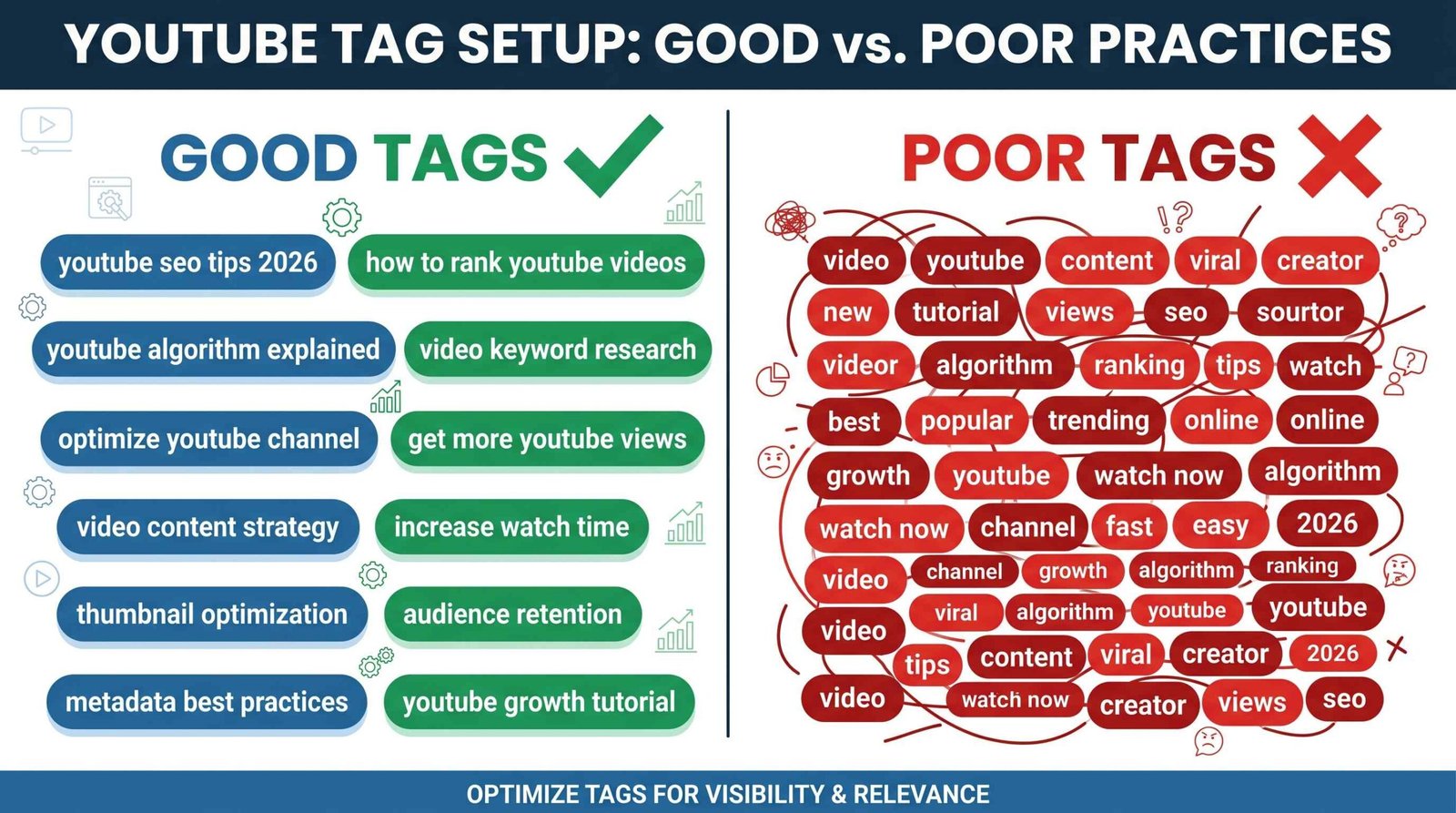
How to Validate AI-Generated Tags (Important Step Most Creators Skip)
This is the step that separates creators who use tag generators well from creators who get burned by them. AI-powered tools generate plausible-sounding tags that may have zero actual search demand. A language model can write “best youtube content creation tips 2026 amazing” and it sounds like a tag, but if nobody searches that phrase, the tag does nothing for you.
We run every AI-generated tag through a four-step validation before pasting it into YouTube Studio. The whole process takes about three minutes per video and dramatically improves tag quality.
Step 1: Test the tag against YouTube autocomplete. Open YouTube in an incognito window (to avoid personalized suggestions polluting your test), click the search bar, and start typing the tag. If autocomplete surfaces the phrase or close variants, real people search for it and the tag has demand. If autocomplete shows nothing related, the tag has no proven search behavior, drop it. This single test eliminates roughly 30 percent of AI-suggested tags in our experience.
Step 2: Check if the top search results match your content. Once autocomplete confirms the tag, run the actual search and look at the top 10 results. Are they videos similar to yours in topic, format, and target audience? If yes, the tag sends the right signal and YouTube will likely cluster your video with those results. If the top results are wildly different (a cooking tutorial returning music video results, for instance), the tag will send the wrong signal and confuse the algorithm. Drop it.
Step 3: Check for redundancy with your title and description. If a tag is already present word-for-word in your title or description, adding it as a tag provides minimal additional signal. YouTube already knows your video relates to that phrase. The tag slot is more valuable when used for related phrases the title doesn’t already cover.
Step 4: Cull vague modifiers. Any AI-generated tag that’s a vague descriptor without standalone search demand should be cut. Examples: “interesting content,” “great video,” “must watch,” “2026 tips,” “amazing tutorial.” These read well in marketing copy but they’re not search queries. Real viewers type specific, intent-driven phrases (“how to fix a leaking faucet”), not abstract praise.
The discipline of running every AI tag through these four checks builds the muscle of thinking like a search query, not a marketing slogan. Combine this with proper keyword research strategy and your tag sets become measurably stronger over a few months of uploads.
5 YouTube Tag Best Practices for 2026
The mechanics of tagging haven’t changed dramatically in the past few years, but the strategic emphasis has. These are the practices that hold up consistently across niches and channel sizes.
1. Lead with exact-match keyword tags. The single most valuable tag slot is occupied by the exact search phrase your target viewer types. If you’re making a video on “iPhone 17 Pro camera review,” your first tag should be exactly that phrase. Match the search query, don’t paraphrase it. YouTube’s algorithm performs a fuzzy match, but exact matches still carry the strongest signal.
2. Use multi-word phrase tags over single words. “Youtube SEO tips” outperforms “seo” by a wide margin. Single-word tags compete with millions of unrelated videos and provide almost no contextual signal. Multi-word phrases narrow the topical scope and align with how real people search. The sweet spot is 2 to 5 word phrases.
3. Include a few 1 to 2 word broad topic tags as fallback discovery signals. While most of your budget should go to phrase tags, 2 or 3 broader topic tags (one word or two) can help with sidebar recommendations and broader topical clustering. For our iPhone review example, “iPhone 17” and “smartphone review” would round out the phrase tags.
4. Add 2 to 3 branded tags for your channel name and series names. Your channel name, any recurring series name, and your host name (if relevant) all earn permanent slots. These tags help YouTube build channel-level topical authority and improve end-screen suggestions where your own videos surface alongside each other.
5. Never copy-paste a competitor’s exact tag list. TubeBuddy and similar tools let you see competitors’ tags, which is useful for research and idea generation but disastrous when you paste the list wholesale. YouTube can detect identical tag sets across channels, which signals low-effort metadata and provides zero differentiation. Use competitor tag visibility for inspiration, then build a tag set that combines their working tags with your own unique angles.
If you want to layer this with a broader YouTube SEO strategy covering titles, thumbnails, and chapters, the principles above stack neatly with those higher-leverage signals.
Tag Generator Workflow: From Topic to Published Video
Here’s the end-to-end workflow we run for every upload, which integrates tag generation, validation, and the budget allocation framework into a single repeatable process. The whole sequence takes about 10 minutes once you’ve done it a few times.
Stage 1 (2 minutes): Define the target search query. Before opening any generator, write down the single search phrase you most want your video to rank for. This becomes your first exact-match tag and the spine of the entire tag set.
Stage 2 (2 minutes): Generate a raw tag pool. Plug your title into RapidTags or TunePocket for a quick free pool, or VidIQ if you want data-backed suggestions. Aim for 30 to 50 raw candidates.
Stage 3 (3 minutes): Validate the pool. Run the four-step validation (autocomplete check, top-results check, redundancy check, vague modifier cull) on each candidate. Expect to keep roughly 40 to 60 percent of the original pool.
Stage 4 (2 minutes): Apply the budget allocation. From the validated pool, select 3 to 4 exact-match phrase tags, 3 to 4 supporting-topic tags, and 2 to 3 branded tags. Verify the total character count sits between 280 and 450 (giving you some headroom under the 500 cap).
Stage 5 (1 minute): Paste into YouTube Studio and save. Enter each tag in the Tags field, hit Enter between each, save. Done.
This workflow is deliberately mechanical because it removes the temptation to overthink each upload. The variables that actually matter (title, thumbnail, hook in the first 15 seconds) deserve far more of your creative attention than tag selection. We’ve covered the complete suite of YouTube SEO tools elsewhere if you want to extend this workflow with thumbnail testing, title A/B tools, and analytics dashboards.
Common YouTube Tag Mistakes That Hurt Your Channel
A short list of practices we see repeatedly that drag down channel performance:
Misleading tags. Tagging your cooking video with “Mr Beast” or “Taylor Swift” to ride on celebrity search volume. This violates YouTube’s policies on metadata, sends wildly mismatched signals to the algorithm, and frequently results in reduced reach when YouTube’s quality filters catch it. The short-term traffic isn’t worth the long-term channel damage.
Tag duplication across the entire channel. Using the exact same 12 tags on every video regardless of topic. This blurs your channel’s topical authority instead of building it. Each video should have a tag set tuned to its specific subject, with only branded tags repeating across the channel.
Ignoring tag updates on older videos. A video uploaded two years ago with weak tags will continue to underperform. If you see an old video getting unexpected traction in Search Insights, take five minutes to tighten its tag set. We’ve seen this single intervention bump videos from 200 views per month to 2,000.
Treating tags as a substitute for a strong title. Tags don’t fix a vague or unclickable title. If your title is “My Week,” no amount of tag optimization will save the video. Fix the title first; tags are a supporting signal, not a rescue mechanism.
Using foreign-language tags for English-language content. Adding Spanish, Hindi, or Mandarin tags to an English video to “expand reach” doesn’t work. YouTube’s language detection is robust enough to flag the mismatch, and the tags either get ignored or count against your relevance score.
For broader keyword exploration beyond tags, including title and description optimization, we’ve published a separate guide on YouTube keyword generators that complements this tag-focused workflow.
FAQ Section
Are YouTube tags important in 2026?
Tags are a supplementary ranking signal in 2026, not a primary driver. They genuinely help in three scenarios: niche or technical content where YouTube’s algorithm has limited context, new channels with no established watch history, and branded content series that benefit from tight clustering. For mainstream content on established channels, title, description, thumbnail click-through rate, and audience retention carry far more weight than tags. The honest answer is that tags are worth optimizing but only after the higher-leverage signals are dialed in.
How many tags can you use on YouTube?
YouTube imposes a hard limit of 500 characters total across all tags combined, but there’s no specific cap on the number of individual tags. Most creator community testing points to 8 to 12 tags as the optimal range. Below 8 leaves algorithmic signal on the table, and above 15 dilutes the quality signal YouTube reads from your tag set. The strategic question isn’t how many tags to use but how to allocate the 500 characters across exact-match phrase tags, supporting-topic tags, and branded tags.
Do YouTube tags affect monetization?
Tags don’t directly affect monetization eligibility or revenue per mille. However, the category you select (a separate field from tags) does influence which advertisers bid on your inventory, and certain topics carry higher or lower CPM rates regardless of tags. Tags can indirectly influence revenue by helping the algorithm route your videos to the right audience, which improves watch time and engagement, both of which factor into the algorithmic decisions that affect long-term reach and therefore total revenue.
What is the YouTube tags character limit?
The total character limit across all tags is 500 characters, including the spaces within multi-word phrase tags and the implied separators between tags. YouTube also imposes a maximum length of 100 characters per individual tag, though no single tag should ever approach that length in practice. The 500-character total is the constraint that actually matters and the one you should optimize against when building a tag set.
Can you add tags to existing YouTube videos?
Yes, you can add, edit, or remove tags on any existing video at any time without any penalty or algorithm reset. Open YouTube Studio, navigate to Content, click the pencil icon next to the video you want to edit, scroll to “Show more” to expand additional fields, edit the Tags field at the bottom, and save. Changes apply immediately. Revisiting tags on older videos that are gaining traction in Search Insights is one of the highest-leverage optimization moves available to creators with back catalogs.
Should I use the same tags on every video?
No. Using identical tag sets across every video is one of the most common mistakes we see. It blurs your channel’s topical authority and tells YouTube that you can’t differentiate between your own video topics. Only branded tags (your channel name, recurring series names) should repeat across uploads. Every other tag should be tuned to the specific subject of each individual video. A cooking channel’s pasta tutorial and bread baking tutorial should share branded tags but otherwise have completely different tag sets.
What’s the difference between YouTube tags and hashtags?
Tags and hashtags are completely different systems. Tags are private metadata entered in YouTube Studio that viewers never see, used to help the algorithm understand your content. Hashtags are public, clickable links placed in your video description (prefixed with #). Hashtags create dedicated discovery pages on YouTube, and the first three hashtags from your description appear above the video title in the public view. Tags have a 500-character total limit; hashtags max out at 15 per video. Use both, but treat them as independent decisions with different strategic purposes.
Are paid tag generators worth it?
For most creators below 50K subscribers, free tools combined with YouTube Studio’s built-in Search Insights cover 90 percent of what paid tag generators offer. The paid tiers of VidIQ and TubeBuddy add value primarily through their broader analytics suites, channel audit features, and competitor research tools, not through dramatically better tag generation. If you’re comparing free generators against VidIQ Boost at 7.50 dollars per month, the value comes from the integrated workflow rather than the tags themselves. We suggest starting with the free options for at least three months before considering a paid upgrade, and only upgrading if the broader analytics features (not the tags) justify the cost for your specific workflow.

When to Skip Tag Generators Entirely
Worth saying directly: some creators don’t need tag generators at all. If you fall into one of these categories, your time is better spent elsewhere.
Established channels with 100K+ subscribers and strong topical focus. Once your channel has a clearly defined niche and a substantial watch history, YouTube’s understanding of your content is built almost entirely from your title and your audience’s behavior, not from tag metadata. We’ve seen large channels run experiments where they removed tags entirely from new uploads and saw no measurable performance difference. If you’re in this position, the time you’d spend on tag generation is better invested in thumbnail testing, hook scripting, or chapter structure.
Creators uploading viral or trend-chasing content. If your strategy is to react quickly to trending topics, news cycles, or current events, tag generation slows you down without meaningful payoff. The discovery loop for trending content runs primarily through the title, the thumbnail, and the publish timing relative to the trend. Add a few obvious tags by hand and ship the video.
Live streams. Tags on live streams have minimal impact because the discovery surfaces for live content (the live tab, notifications to subscribers, the chat-driven recommendation loop) don’t lean on tags the way pre-recorded video discovery does. A handful of broad topic tags is sufficient for streams.
For everyone else, mid-sized channels, niche creators, anyone building a back catalog around evergreen search topics, tag generators earn their place in the workflow when used with the validation discipline outlined above.
Final Take
YouTube tag generators are a useful first-draft tool, not a magic discoverability lever. The creators who get measurable lift from tags treat them as a budget allocation exercise (3 to 4 exact-match phrase tags, 3 to 4 supporting-topic tags, 2 to 3 branded tags) and validate every AI-generated suggestion against YouTube autocomplete before using it. The creators who don’t, the ones who paste 50 random tags from a generator and call it done, see no measurable benefit because their tag sets dilute the quality signal YouTube reads.
For 2026, our suggested stack is YouTube Studio Search Insights as your primary first-party data source, paired with RapidTags or TunePocket for free rapid drafting, and VidIQ if your workflow benefits from integrated analytics. Whichever tools you pick, the four-step validation and the 500-character budget framework matter more than the specific generator. Get those two disciplines right, and a free tool will outperform a paid one used carelessly.
Tags are a small but real piece of the YouTube SEO puzzle. Spend ten minutes per upload on them, then put your real creative energy into the parts of the video that actually win or lose viewer attention: a title that promises a specific outcome, a thumbnail that survives the scroll, an opening 15 seconds that pays off the click, and pacing that holds retention. Tags will quietly do their job in the background once those bigger levers are in place.