
YouTube Cards: Complete Guide to Info Cards, Timing & Strategy (2026)
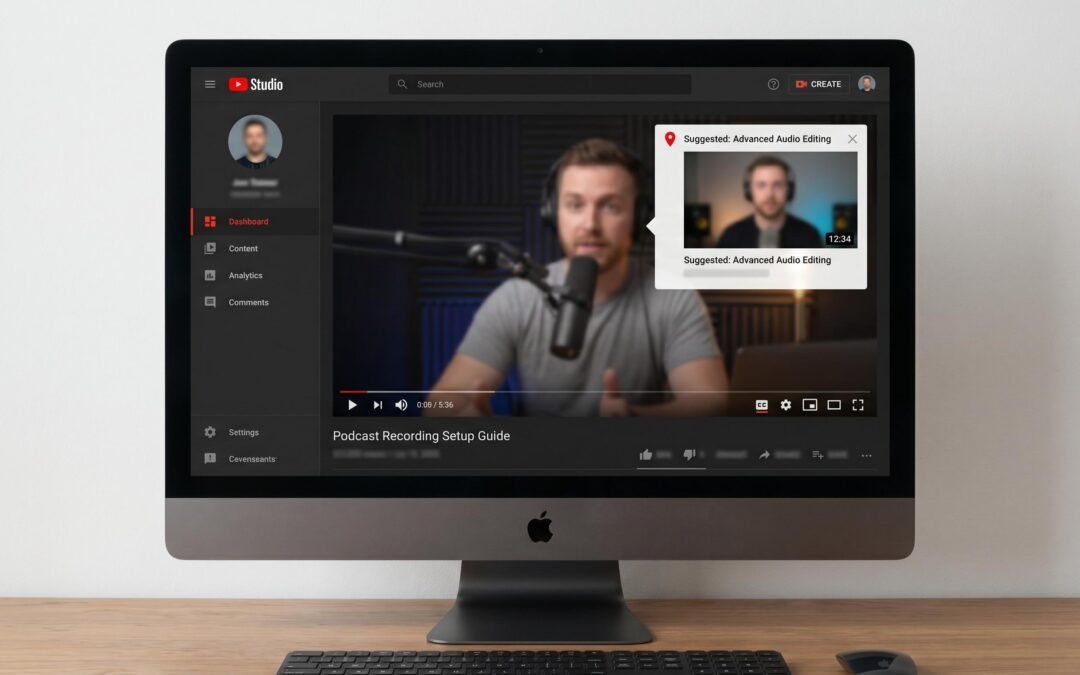
YouTube cards are clickable overlays that appear in the upper-right corner of a video, letting creators link viewers to another video, playlist, channel, or approved external website. Each video supports up to five cards, which appear as a small teardrop icon. Cards work on long-form videos only, not YouTube Shorts, and they help redirect mid-video viewers before they click away.
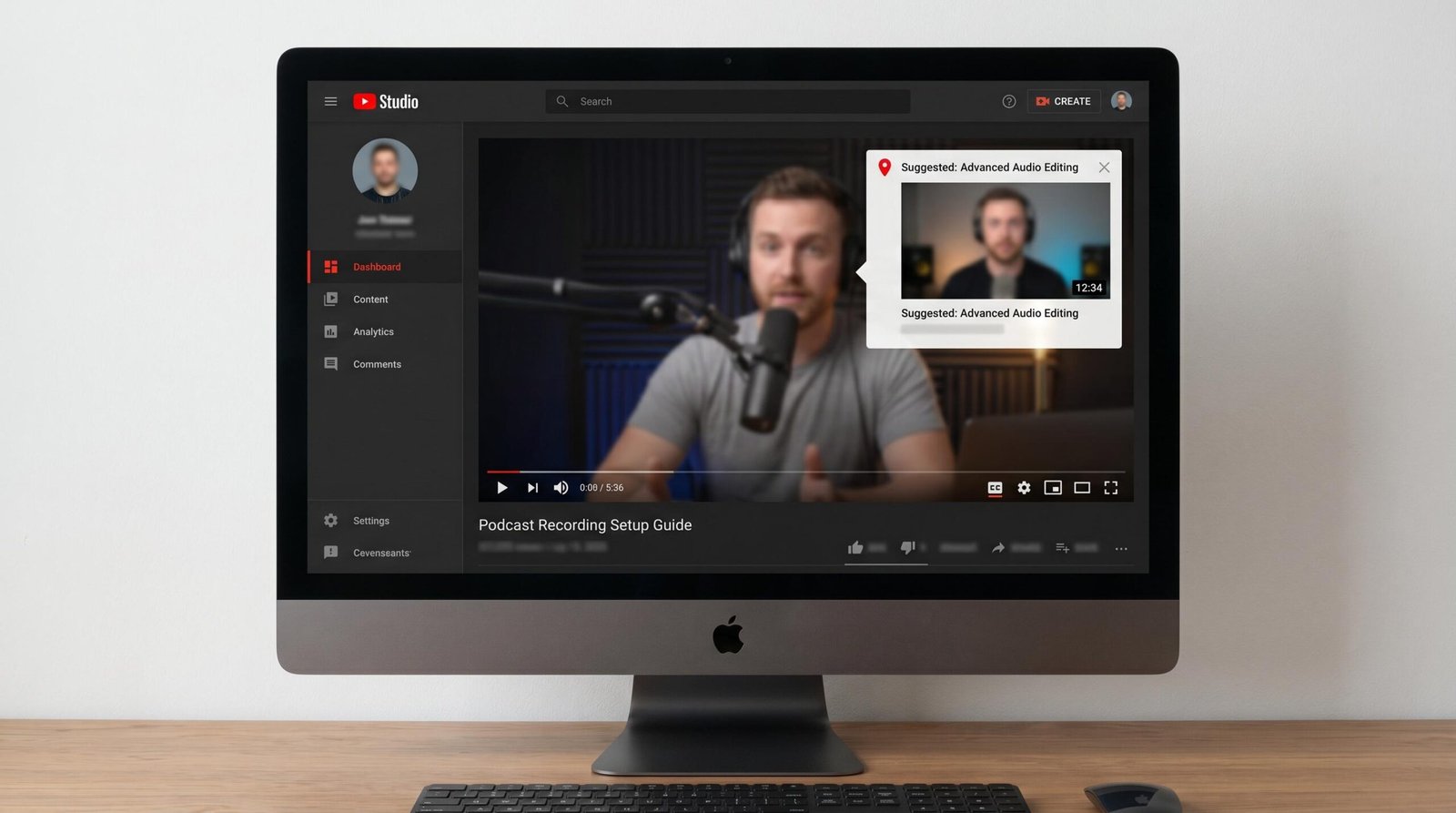
If you have ever watched a video and seen a little white circle pop up in the corner with a teaser, you have already met a YouTube card. They look simple. They are not. Used well, cards are one of the most underrated retention tools on the platform, capable of pulling a viewer who was about to leave into another video on your channel and lifting your session watch time in the process.
Used poorly, they get ignored. Most creators add them as an afterthought, drop them at random timestamps, and never check the analytics. This guide fixes that. We cover what cards are, how they work, where to place them, how to write card text that actually gets clicks, and the SEO mechanic that makes channel-internal cards more valuable than external links.
What Are YouTube Cards?
YouTube cards are interactive overlays that creators add to their long-form videos to promote related content or external destinations. A small teardrop icon (sometimes called the “i” icon for info) appears in the upper-right corner of the video at the timestamp you choose. When a viewer clicks or taps that icon, a panel slides in from the right showing a thumbnail, a short title, and any custom message you have written.
Cards are sometimes called YouTube info cards, a holdover term from when the feature first replaced the older annotation system. The two names refer to the same product. We explain the terminology history later in this guide.
The Four Types of YouTube Cards
YouTube currently supports four card types, each with a specific use case:
- Video card: Links to a single video, either your own or someone else’s public video.
- Playlist card: Links to a public playlist on any channel.
- Channel card: Promotes another YouTube channel, useful for shoutouts, collaborations, or your second channel.
- Link card: Sends viewers to an approved external website. This requires your channel to be part of the YouTube Partner Program (YPP), and the destination must be on YouTube’s list of approved sites or a domain you have verified.
Each video can carry up to five cards. You choose the timestamp where each card’s teaser appears, and you can mix card types in the same video, for example three video cards plus one playlist card plus one external link card.
How Cards Appear to Viewers
At the timestamp you set, a small teaser strip slides out from the upper-right corner of the player for a few seconds. It shows the title of the linked content and any custom teaser text you wrote. After it disappears, the small “i” icon stays visible for the rest of the video, letting viewers tap it any time to see all available cards in that video.
On desktop, viewers see the teaser slide automatically. On mobile, the icon is smaller and the teaser still appears, though the interaction is one tap to open the card panel. We cover the full mobile vs. desktop distinction in a dedicated section below.
For YouTube’s full technical reference on how the feature behaves, see YouTube’s official cards documentation.
YouTube Cards vs. End Screens: Which Should You Use?
Most creator guides treat cards and end screens as the same kind of tool. They are not. They solve different problems at different points in the viewer’s journey, and using them interchangeably wastes both.
Cards are mid-video retention tools. They exist to redirect viewers who are losing interest before they click away from your channel entirely. If a viewer is going to leave anyway, you want them leaving for another one of your videos, not to a competitor’s recommendation in the sidebar.
End screens are end-of-video continuation pushes. They appear in the final 5 to 20 seconds of a video and capitalize on viewers who already watched to the end. These viewers are engaged, satisfied, and statistically most likely to start another video right now. End screens give them the most prominent possible nudge to do so. For the full breakdown of placement, design, and best practices on that side of the equation, see our complete end screens guide.
Cards vs. End Screens Comparison Table
| Feature | YouTube Cards | End Screens | When to Use Which |
|---|---|---|---|
| Placement timing | Anywhere from 0:00 to the video’s end | Final 5 to 20 seconds only | Cards for mid-video, end screens for video closeout |
| Visual size | Small teardrop icon, low-disruption teaser | Full-frame clickable elements over video | Cards when you do not want to interrupt, end screens when you do |
| Number per video | Up to 5 | Up to 4 elements | Cards offer more chances throughout the video |
| Strategic goal | Catch viewers before they drop off | Convert engaged finishers into next-video views | Use both for full-funnel retention |
| Best content types | Video, playlist, channel, external link | Video, playlist, subscribe, external link | End screens add a subscribe element, cards do not |
| Works on Shorts | No | No | Neither feature applies to Shorts |
| Typical CTR | Under 0.5% average, 1 to 3% for strong cards | 5 to 10% on engaged audiences | Lower bar for cards, higher payoff for end screens |
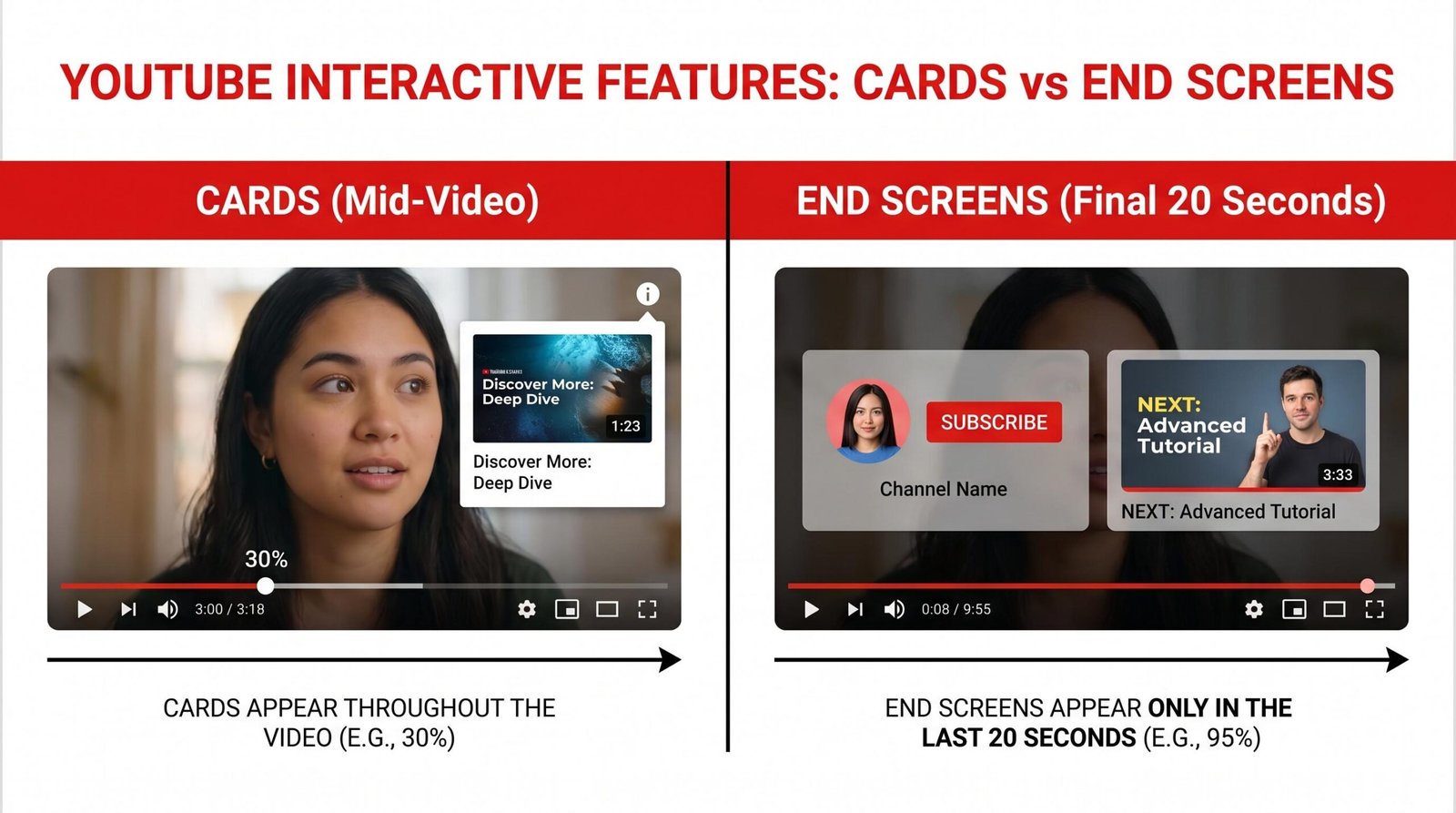
The takeaway: cards and end screens are complementary, not competitive. We suggest using both on every long-form upload. Add three to five cards throughout the video to catch mid-video drop-off, and stack two to four end screen elements in the final 20 seconds to convert engaged finishers.
How to Add YouTube Cards Step by Step
You can only add cards from a desktop browser using YouTube Studio. The YouTube mobile app does not currently support adding or editing cards, though viewers on mobile can still see and click them. Plan to do all card setup at your computer.
Step 1: Open YouTube Studio
Sign in to studio.youtube.com with the account that owns the channel. Click “Content” in the left sidebar to see your list of uploaded videos.
Step 2: Select the Video You Want to Edit
Hover over the video and click the pencil icon (Details), or click the video thumbnail to open its editor. You will land on the video’s details page.
Step 3: Open the Cards Editor
In the right column of the video editor, find the “Cards” box. Click it to open the cards editor view. You will see your video’s timeline at the bottom of the screen with playback controls.
Step 4: Add Your First Card
Click “Add card” in the top section. A menu appears with four options: Video, Playlist, Channel, or Link. Pick the type you want.
- Video or playlist card: Paste a YouTube URL or search for the content you want to link.
- Channel card: Enter the channel handle or URL, then write a custom message (up to 70 characters).
- Link card: Paste the destination URL. The site must be on YouTube’s approved list or one you have verified through Google Search Console.
Step 5: Set the Timestamp
This is the most important step and the one most creators rush. Use the timeline at the bottom to scrub to the exact second you want the card’s teaser to appear. Drag the card’s marker on the timeline, or type the timestamp directly. We explain the strategic timing logic in the next section.
Step 6: Write the Teaser Text
For video and playlist cards, you can add a custom teaser message that overrides the default title. This is where most card CTR is won or lost. The teaser card technique section below covers exactly what to write.
Step 7: Save
Click “Save” in the top-right corner. Repeat for up to five cards per video. Changes apply immediately, even on a video that is already published.
The Optimal Card Timing Strategy
YouTube does not tell you where to place cards. The default suggestion in most guides is “add them anywhere relevant.” That is not a strategy.
The right way to think about card timing: cards are a safety net for viewers who are about to leave. So you place them where leaving becomes likely.
The First Card Goes at the 20 to 30 Percent Mark
Audience retention curves on most YouTube videos show the same shape. There is a sharp drop in the first 20 seconds as viewers decide whether to commit, a slower decline through the middle, and another drop near the end. The window between roughly 20 and 30 percent of the way through is where you have the most engaged audience still watching but where mid-video drop-off is starting to bite.
That is when your first card should fire. The viewer is past the intro hook and committed, but if they are going to leave for another video, this is approximately when it starts happening. Catching them now gives the card the largest possible click pool.
Avoid the First 20 Seconds
Do not place cards in the opening 20 seconds. Viewers are still orienting to your content, deciding whether to keep watching, and reading any on-screen text or title context you set up. Throwing a card at them now distracts from the hook that has to land for the video to work at all. You also waste the card on viewers who have not yet decided they care.
Place Cards at Curiosity Gaps
The strongest mid-video card placement is right after you raise a question and before you answer it. “Coming up, I’ll show you the one camera setting that fixed my low-light footage, but first, here’s how I used to set it up wrong” is a curiosity gap. The viewer is leaning in. Drop a related card at that exact moment and the click rate climbs significantly above your card baseline.
Curiosity gaps work because the viewer’s attention is already cued up to receive new information. They are looking for resolution. A card teaser that promises related answers slots naturally into that mental state.
Space Cards Out
If you are using all five cards, do not stack them in a single five-minute window. Space them across the video, ideally one in the first third, one or two in the middle, and one in the last third (but before the end screen timing window). Stacked cards train viewers to ignore the icon.
For more on how on-video signals like cards and chapters work together to keep viewers engaged, see our guide to YouTube chapters and timestamps.
The Teaser Card Technique: How to Write Card Text That Gets Clicks
Most creators write card teaser text like a file label. “Camera gear video.” “Lighting tutorial.” “Q&A.” Those teasers tell the viewer what the video is. They do not tell the viewer why to click right now.
The teaser card technique is simple: replace the generic title with a one-sentence preview of what the linked video specifically explains. You are not labeling the destination, you are baiting it.
Generic vs. Teaser Examples
Watch what happens when you rewrite a generic card teaser as a specific one:
- Generic: “My camera gear video”
Teaser: “I cover exactly which lens setting to use for dark rooms” - Generic: “Lighting tutorial”
Teaser: “The two-light setup I use for a $400 budget” - Generic: “Beginner editing playlist”
Teaser: “Skip these three transitions that make videos look amateur” - Generic: “Subscribe to my second channel”
Teaser: “Where I post the gear tests too long for this channel”
The teaser version answers the only question a viewer asks before clicking: what do I get if I click this? The generic version makes them guess. Most viewers will not bother.
Teaser Writing Rules
- Stay under 70 characters. YouTube truncates longer teasers.
- Lead with the specific benefit or insight, not the format. “How to fix it” beats “tutorial.”
- Use numbers when you can. “The 3 mistakes” outperforms “common mistakes.”
- Match the energy of the moment in the video. A teaser placed during a serious explanation should read seriously. A teaser placed during a comedic bit can match that tone.
- Never use clickbait you cannot deliver on. Viewers who click and bounce hurt your channel more than a click you never got.
The same principles that improve card teasers improve video titles and thumbnails, since both are doing the same job (selling the click). Our deep dive on YouTube title optimization and click-through rate applies the same framework to titles.
YouTube Card CTR: What Good Looks Like
Almost no creator guide tells you what a good card CTR actually is, which leaves creators flying blind. Here is the honest answer based on aggregate YouTube card data.
Card CTR Benchmarks
- Average across all cards: under 0.5%. Most cards on most videos get clicked by fewer than one in 200 viewers who reached the timestamp.
- Solid performance: 0.5% to 1%. You are using cards intentionally and writing decent teasers.
- Strong performance: 1% to 3%. You are placing cards at curiosity gaps and writing specific teasers. Top-tier work.
- Exceptional: 3%+ CTR. Rare, usually only achieved on highly engaged niche content where the linked video is a direct continuation of the current topic.
If your cards are sitting at under 0.5%, you are normal but underperforming. Most of the gap closes by applying the timing strategy and teaser technique above.
What Influences Card CTR
Several factors move the number:
- Timing: Cards at curiosity gaps outperform cards at random timestamps by a wide margin.
- Teaser specificity: Specific teasers outperform generic ones by 2 to 5 times in our experience.
- Relevance: A card linking to a directly related video outperforms a card linking to your most recent upload.
- Audience size: Engaged niche audiences click cards more often than broad general audiences. A 50,000-subscriber cooking channel can hit 2% card CTR more easily than a 5-million-subscriber lifestyle channel.
- Card type: Video cards generally outperform link cards, since viewers prefer staying on YouTube.
How to Find Card Analytics
In YouTube Studio, open the video, click “Analytics” in the left sidebar, and look for the “Engagement” tab. Scroll to find the “Cards” report. You can see, for each card on the video, how many impressions the teaser got, how many clicks, and the click rate. Use this to iterate: pull the worst-performing cards, rewrite the teasers, change the timestamps, and check back in two weeks.
Session Watch Time and Why Channel-Internal Cards Rank Your Videos
Here is a mechanic almost no card guide explains, and it matters more than the click rate itself.
When a viewer clicks a card that links to another video on your channel, a playlist of your videos, or your channel itself, YouTube records that as session continuation. The viewer’s session keeps going inside your content. Their total session watch time increases, and the algorithm rewards channels that hold viewers in long sessions.
Session watch time is one of the signals YouTube uses to decide which channels to surface in recommendations across the platform. A channel that consistently extends viewer sessions gets pushed to more viewers. A channel that sends viewers off-platform with external link cards does not get that boost. Worse, when a viewer clicks an external link card, they leave YouTube entirely, and the session ends.
The implication is direct: if you have to choose between a channel-internal card and an external link card, the internal card almost always wins on long-term channel growth, even if the external link feels more “valuable” in the short term. This is a baseline principle we apply alongside the rest of our YouTube SEO playbook for 2026.
Google’s own video SEO guidelines confirm that engagement signals and watch-time data feed into how videos surface in both YouTube and Google search results. Card-driven session extension is one of the cleanest, lowest-effort ways to send those signals.
When External Link Cards Still Make Sense
External link cards have a place. Use them for:
- Driving merch or product sales where conversion is the goal, not channel growth
- Sending viewers to a newsletter signup where you build a separate audience asset
- Crowdfunding campaign or course launches where the click is the entire point
- Linking to a long-form article that meaningfully extends the video topic
For everything else, send viewers to your own next video. The session continuation is worth more over time than the external click.
YouTube Cards on Mobile vs. Desktop
Cards behave a little differently across devices, and one device limitation catches a lot of creators by surprise.
Adding Cards: Desktop Only
You can only create, edit, or remove cards from a desktop browser using YouTube Studio. The YouTube Studio mobile app does not include the cards editor. If you are traveling and need to update cards on a video, you will have to log in from a laptop or a tablet running a desktop browser.
Viewing Cards: All Devices
Viewers can see and click cards on every platform: desktop browsers, the YouTube mobile app on iOS and Android, smart TVs (with limitations), and connected gaming consoles. The viewing experience is slightly different per platform:
- Desktop: Teaser strip slides out from the corner. Hovering over the “i” icon shows a preview. Clicking opens the full card panel on the right.
- Mobile app: Teaser appears briefly. Tapping the “i” icon opens the card overlay. Tapping the card opens the destination, either in YouTube or in the device’s browser for external links.
- TV apps: Card support is limited. On many TV interfaces, cards are visible but harder to interact with. We suggest not relying on cards for content where most viewers are on TV (long-form podcasts in some niches, for example).
Mobile Click Behavior
Mobile viewers click cards at meaningfully lower rates than desktop viewers, partly because the icon is smaller and partly because mobile viewing is often a more passive experience. If your audience skews 70%+ mobile (which it does for most channels in 2026), expect your overall card CTR to skew lower than benchmark averages. This is normal. Focus on relative improvement over time, not absolute numbers.
YouTube Cards vs. Info Cards: Are They Different?
Short answer: no. YouTube cards and info cards are the same feature. The naming has just shifted over time.
When YouTube originally launched the feature in 2015, they were marketed simply as “cards.” Around 2016, YouTube’s help documentation and creator materials started using the term “info cards” interchangeably, mostly because of the small “i” icon that appears in the upper-right corner. Many older tutorials and SEO articles still use “info cards” as a search-friendly variant.
In current YouTube Studio, the menu and product label is just “Cards.” So if you are searching documentation and find one source calling them “YouTube cards” and another calling them “info cards,” it is the same thing. The four card types and behavior are identical regardless of which name you encounter.
Why the Naming Confusion Persists
SEO is part of the answer. “YouTube info cards” still gets meaningful monthly search volume because creators learned the term from older tutorials and keep typing it into Google. We use both terms interchangeably throughout this guide to match how creators search.
YouTube Cards and Shorts: One Critical Limitation
Cards are not available on YouTube Shorts. Full stop.
The Shorts format uses a vertical, full-screen player optimized for swipe navigation. The interface does not include the upper-right card overlay area where the teardrop icon would normally appear. There is no setting to enable cards on a Short. The cards editor in YouTube Studio is grayed out or hidden entirely on any video uploaded as a Short.
If you are creating Shorts and want to drive viewers to a longer video, your options are:
- Pin a comment with a link to the related long-form video
- Add the link to your channel description
- Verbally direct viewers to “check the description” or your channel for the full version
- Use the “Related video” feature for Shorts, which lets you link one long-form video to a Short
Creators who try to add cards to Shorts often spend frustrated time looking for a setting that does not exist. Save yourself the search. For Shorts-specific discovery, the better lever is solid YouTube keyword research on the title and on-screen text, since those carry the discovery weight that cards would on long-form content.
Frequently Asked Questions
How many YouTube cards can I add to one video?
You can add up to five cards per video. Each card needs its own timestamp, and timestamps must be at least a few seconds apart so the teasers do not overlap. We suggest using all five on longer videos (over 8 minutes) and three to four on shorter ones.
Do YouTube cards work on Shorts?
No. Cards are not available for YouTube Shorts. The Shorts vertical format does not support the card overlay interface. If you want to link from a Short to another video, use the Related Video feature, a pinned comment with a link, or your channel description.
Why are my YouTube cards not showing up?
The most common causes are: the video is a Short (cards are not supported), the card was saved but you are testing on a cached browser session (refresh), the card’s timestamp has not been reached yet during playback, or you are watching on a platform with limited card support like some smart TV apps. Double-check the cards editor in YouTube Studio to confirm the card is saved at the timestamp you expect.
Can I add external links as YouTube cards?
Yes, if your channel is in the YouTube Partner Program (YPP) and the destination is either on YouTube’s approved external links list or a domain you have verified through Google Search Console. Without YPP membership, you cannot add link cards to external sites.
What is a good click-through rate for YouTube cards?
Average card CTR is under 0.5%. Solid performance is 0.5% to 1%, strong performance is 1% to 3%, and exceptional cards on highly engaged niche content can hit 3% or higher. If your cards are below 0.5%, focus on better timing (place cards at curiosity gaps, not random timestamps) and writing specific teaser text instead of generic titles.
Can I add YouTube cards from my phone?
No. Adding, editing, or removing cards requires a desktop browser with YouTube Studio. The YouTube Studio mobile app does not include the cards editor. Viewers, however, can see and click cards from any device including phones, tablets, and most TV apps.
What is the difference between YouTube cards and end screens?
Cards are mid-video tools that appear as a small teardrop icon in the upper-right corner, designed to redirect viewers before they drop off. End screens are full-frame elements that appear in the final 5 to 20 seconds of a video, designed to convert engaged finishers into their next view. Use cards throughout your video and end screens at the close. They work best together.
Putting It Into Practice
Cards reward creators who treat them as a strategic retention tool rather than a checkbox. Place your first card at the 20 to 30 percent mark, hit curiosity gaps with the rest, write teaser text that previews the specific benefit instead of labeling the destination, and lean toward channel-internal cards to compound session watch time. Then check your card analytics every couple of weeks, rewrite the underperformers, and keep iterating. If you want the full retention playbook including end screens, chapters, and on-video signals, our 2026 YouTube SEO guide ties everything together.